cara perbaiki wifi laptop
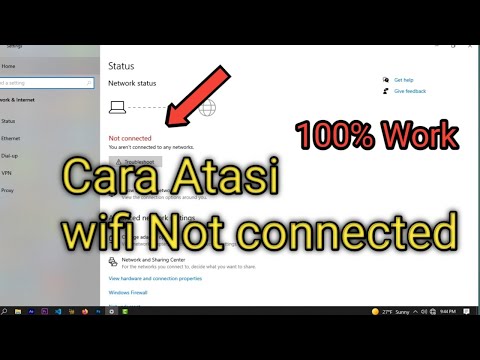
Title: Cara atasi WiFi tidak bisa connect di laptop not connected
Channel: ijal tutorial
Cara atasi WiFi tidak bisa connect di laptop not connected by ijal tutorial
cara memperbaiki wifi laptop, cara perbaiki wifi laptop tanda silang, cara memperbaiki wifi laptop tidak bisa connect, cara memperbaiki wifi laptop hilang, cara memperbaiki wifi laptop yang tidak bisa connect, cara mengatasi wifi laptop hilang, cara mengatasi wifi laptop can't connect to this network, cara mengatasi wifi laptop tidak muncul, cara mengatasi wifi laptop silang merah windows 7, cara mengatasi wifi laptop lemot
Laptop WiFi Nightmare? FIX It NOW!
Laptop WiFi Woes? Your Instant Relief Guide
Is your laptop currently battling a WiFi malfunction? Are you stuck in a digital purgatory of dropped connections and sluggish speeds? You’re not alone. Many users face this frustrating reality. However, there’s hope. This isn't a tech manual; think of it as your personal WiFi rescue mission. We’ll dive into the common culprits and solutions.
Decoding the Digital Doldrums: What's Really Happening?
First, let's acknowledge the problem. Your wireless network is critical. It's how you work, learn, and communicate. A faulty connection can grind everything to a halt. Therefore, it helps to understand the usual suspects.
Over time, many factors can cause connectivity issues. Consider your environment. Are you amidst other devices? Then interference might be present. This is a subtle disruption, but it can be devastating. Also, assess your distance from the router. Walls and obstacles can weaken the signal. In many cases, it's a simple fix.
Troubleshooting Time: Your Step-by-Step WiFi Lifeline
Now, let’s begin the recovery process. Start with the basics. It is essential to eliminate the obvious. Make sure your laptop’s WiFi is on. Seriously, check the physical switch or system settings. Next, reboot everything. Reboot your laptop. Restart your router. Sometimes, a simple reset does the trick. This is more than an afterthought.
If these steps fail, investigate the router itself. Is it blinking an error code? Consult your router's manual. Try moving closer to the router. See if the signal improves. Alternatively, try a different device. Does another device have issues? Then the problem might be the network itself.
Conquering the Connectivity Crisis: Advanced Tactics
Perhaps you’ve tried the basics, and you're still struggling. Now, it’s time to advance. Check your laptop's network drivers. Outdated drivers are a major cause of problems. Update them through your operating system's settings.
Next, examine your router’s settings. Access router settings by entering its IP address in your browser. From there, look for wireless channel selection. Changing the channel could reduce interference. Also, consider your security settings. Are you using a strong password? Secure your network.
Is Your Laptop the Culprit?
Sometimes, the problem is with your laptop, not the network. Run a diagnostic test. You can find diagnostic tools in your operating system. These tools will check for common issues.
Also, consider your laptop’s hardware. Is the WiFi adapter working? In some cases, hardware failure is the cause. Think about the age of the laptop. Older laptops sometimes experience this fault.
Optimizing for Ultimate WiFi Performance
Beyond fixing the issue, consider ways to optimize performance. Position your router optimally. Elevate it. Keep it away from obstructions.
Furthermore, reduce interference. Keep other devices away from the router. Consider using a different frequency band (2.4 GHz vs. 5 GHz). The 5 GHz band often offers better speed with less interference.
When to Call the Cavalry: Seeking Professional Help
When should you admit defeat? If you’ve exhausted all options and the problem persists, get outside help. Do not hesitate to contact your internet service provider. They can troubleshoot your connection.
Also, consider a computer repair shop. A technician can diagnose hardware issues. They can also offer expert advice. There’s no shame in requesting professional assistance. It’s sometimes the best solution.
Pro Tips for a Smooth Sailing WiFi Experience
Here are some final suggestions: Keep your router’s firmware current. Manufacturers release updates to improve performance and security. Regularly restart your router. This clears its cache.
Also, limit the number of connected devices. Each device uses bandwidth. Finally, create a strong password. Protect your network from unauthorized access.
The Bottom Line: Enjoying Seamless Connectivity
In closing, you can fix those laptop WiFi problems. It may require some patience and effort. It will be worth it. You will be back online in no time. Just follow these steps.
With a little troubleshooting, you can banish the WiFi frustration. Then you’ll be enjoying a smooth, reliable connection. So, go forth and conquer your WiFi woes. Enjoy the digital world.
Asus X Series: WiFi Button Mystery SOLVED! (The SHOCKING Truth!)Laptop WiFi Nightmare? FIX It NOW!
Let's be honest; few things are more frustrating than a sluggish, unreliable Wi-Fi connection on your laptop. It’s like your digital lifeline has gone on strike! You're ready to dive into a project, stream a movie, or simply catch up on emails, and bam – the dreaded buffering symbol appears, or the connection just… disappears. Sound familiar? Don't worry, we've all been there. This isn’t just a minor inconvenience; it's a full-blown laptop Wi-Fi nightmare, and trust me, we can fix it. So, grab a coffee (or your preferred beverage!), settle in, and let's banish those Wi-Fi woes once and for all.
1. The Silent Saboteur: Understanding Your Wi-Fi Woes
Before we start throwing around solutions, we need to figure out just why this is happening. Think of your Wi-Fi as a busy highway. Lots of cars (devices) trying to use it simultaneously can cause traffic jams (slower speeds). Furthermore, physical obstructions like walls, furniture, and even appliances can weaken the signal, like a radio broadcast getting garbled. Then there's interference – your neighbor's Wi-Fi, your microwave, Bluetooth devices, and even certain types of light bulbs can all be competing for the same airwaves. Finding the cause is the first crucial step.
2. Is It Really Your Laptop? Ruling Out the Obvious
Before we assume the worst (a broken laptop), let’s eliminate some other potential culprits. Is your internet service provider (ISP) having issues? Try checking their website or social media for outage announcements. Test other devices – phone, tablet, smart TV. Do they have Wi-Fi problems too? If so, the issue likely lies with your router or internet connection, not your laptop. This is like blaming the car when the road itself is closed.
3. Restart 101: The Miraculous Reboot (and Why it Works!)
Okay, let's start with the tried-and-true method: restarting. It sounds simple, but it's often the most effective. Restart your laptop. Then, restart your router and modem. The reboot process clears temporary files, resets connections, and often sorts out minor glitches that can cause connectivity issues. Think of it as hitting the "reset" button on your digital life. It’s like giving your brain a break after a long day.
4. The Router's Role: Your Wi-Fi's Central Command
Your router is the central hub of your home Wi-Fi network. It's crucial to ensure it's functioning properly. Is it plugged in? Are all the lights blinking the way they should? Is it warm to the touch? If it’s overheating, that could be part of the problem. Consider relocating your router to a more central location, away from walls and obstructions. Also, if you are using an old router, consider upgrading to a newer model that supports the latest Wi-Fi standards (like Wi-Fi 6 or Wi-Fi 6E) for faster speeds and better performance.
5. The Channel Surfer: Optimizing Your Wi-Fi Channel
Think of your Wi-Fi router as a radio transmitter, broadcasting on a specific channel. If too many devices are using the same channel (especially in a crowded apartment building), it can lead to congestion. Most routers automatically select the best channel, but you can manually change it. Access your router's settings (usually by typing its IP address, found on the router itself, into a web browser) and look for the "Wireless" or "Wi-Fi" settings. Explore different channel options and see if it improves your connection. It’s like switching radio stations to find the clearest signal.
6. Driver Drama: Updating Your Wireless Network Adapter Drivers
Your laptop's wireless network adapter needs the right "drivers" (software) to communicate with your Wi-Fi. Outdated or corrupted drivers can cause all sorts of problems. To update your drivers, go to the "Device Manager" in your operating system (search for it in the Windows search bar or the System Settings on a Mac). Locate your network adapter (usually under "Network adapters"), right-click, and select "Update driver." Alternatively, you can visit the manufacturer's website (like Intel, Realtek, or your laptop manufacturer) to download the latest drivers.
7. The Signal Strength Detective: Analyzing Your Wi-Fi Signal
Knowing the strength of your Wi-Fi signal is crucial. Your operating system usually shows an icon indicating the signal strength, but it's not always accurate. Consider using Wi-Fi analyzer apps or websites to get a more precise reading. They can also help you identify nearby Wi-Fi networks and determine the least congested channels. This is like having a compass to navigate through the digital wilderness.
8. Password Panic: Ensuring Secure Wireless Network
If your Wi-Fi network is not secured, a malicious actor can be stealing your bandwidth. Ensure your Wi-Fi network has a strong password and is secured using WPA2 or WPA3 encryption. This effectively locks down your internet connection. This is much like shutting and locking every door to your home.
9. Distance Dilemma: The Impact of Proximity
Distance matters! The further your laptop is from the router, the weaker the signal. This is especially true if you are using an older router. Try moving closer to the router to see if it improves the signal strength and speed. If you need to use your laptop in a location far from the router, consider using a Wi-Fi extender or mesh Wi-Fi system to boost the signal. It is like your hearing. The further you move away from the source, then the harder you have to hear.
10. Bandwidth Battle: Managing Congestion
Too many devices using the Wi-Fi simultaneously can slow things down. Limit the number of devices connected at the same time, or prioritize the devices that need the most bandwidth (like your laptop when you're video conferencing). You can also use Quality of Service (QoS) settings in your router to prioritize specific types of traffic, such as video calls or gaming. It’s like being on a busy freeway. If many cars are on the same freeway, then the speed gradually slows down.
11. Power Saver Procrastination: Power Settings And Wi-Fi
Your laptop's power settings can impact Wi-Fi performance. In some instances, the laptop may reduce performance to save energy. Check your power settings to ensure your Wi-Fi adapter is not being throttled. This setting may affect the power settings of your wi-fi adapter.
12. Malware Mayhem: The Impact of Malware Infections
Malware can sometimes eat away your bandwidth, like a hungry digital parasite. Run a full scan with your antivirus software. Malware can also interfere with your networking functions. Just like a virus can attack and hurt your body, malware can attack your computer.
13. Hardware Hurdles: When To Consider Additional Adapters
If none of the above solutions work, the issue might be with your laptop's built-in Wi-Fi adapter. In that case, you can buy a USB Wi-Fi adapter. Often, these adapters offer better performance than the built-in ones, extending your Wi-Fi performance. This is like adding an additional lung to your body.
14. The Ultimate Upgrade: Router Replacement
When everything fails, and particularly if your router is old, then it could be time for an upgrade. New routers support faster speeds, extended range, and better security features. This is like changing your old car for a brand-new car, offering more features.
15. The Final Frontier: Contacting Support
If, after trying everything, you're still battling Wi-Fi woes, then it's time to seek professional help. Contact your ISP or find local computer repair technicians. They’re the professionals who have seen it all. They can help identify and fix difficult problems.
Putting It All Together
Congratulations! By following these troubleshooting steps, you've equipped yourself with the knowledge to tackle those pesky laptop Wi-Fi problems head-on. We’ve covered everything from simple restarts to advanced driver updates. Remember, patience is key. Diagnosing and fixing Wi-Fi issues can take time, but the reward – a fast, reliable internet connection – is well worth it. Now go forth and conquer those Wi-Fi gremlins!
FAQs:
1. Why is my Wi-Fi suddenly so slow?
Many things can cause slow Wi-Fi. These include congestion on your network, interference from other devices, distance from your router, or problems with your internet service provider. Also, check your laptop's drivers.
2. How can I check my Wi-Fi signal strength?
You can check the Wi-Fi signal strength using the network icon on your operating system. Other apps can help you get a more precise reading.
3. What is the best way to improve my Wi-Fi range?
Using a Wi-Fi extender or mesh Wi-Fi system can significantly improve Wi-Fi range. Also, move your laptop close to the router.
4. How do I update my Wi-Fi drivers?
Go to the Device Manager on your laptop. Then, select your Wi-Fi adapter and select “Update driver”.
5. What should I do if nothing seems to work?
If you’ve tried all the troubleshooting steps and are still struggling, then it's time to seek help
Is Your Laptop WiFi KILLING You? (Solved!)cara mengatasi wifi tidak muncul di laptop logo wifi tidak ada

By ijal tutorial cara mengatasi wifi tidak muncul di laptop logo wifi tidak ada by ijal tutorial
Cara mengatasi wifi yang hilang atau turned of dengan mudah
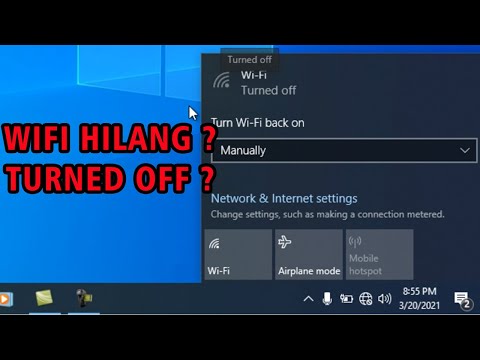
By Abdul Rohman Cara mengatasi wifi yang hilang atau turned of dengan mudah by Abdul Rohman
Cara Mudah Mengatasi WiFi Laptop Tidak Connect Internet

By LANGIT MERAH TUTORIAL Cara Mudah Mengatasi WiFi Laptop Tidak Connect Internet by LANGIT MERAH TUTORIAL

Title: 4 Cara Mengatasi WIFI Not Connected Pada Windows 7 8 10 Part 2
Channel: ZAINURI CHANNEL
4 Cara Mengatasi WIFI Not Connected Pada Windows 7 8 10 Part 2 by ZAINURI CHANNEL
Wifi On Laptop
Laptop WiFi Nightmare? FIX It NOW!
If your laptop's WiFi has transformed into a frustrating, flickering phantom, you're likely experiencing a range of digital frustrations. The dreaded "no internet connection" error, sluggish downloads, and video buffering are all too familiar signs. We understand your pain, and we're here to help you banish these WiFi woes. We'll guide you through a series of solutions, each meticulously crafted to address the myriad culprits that can sabotage your wireless experience. Prepare to reclaim your online world; let's dive in!
Diagnosing the WiFi Culprit: Pinpointing the Source of the Problem
Before we launch into solutions, let's perform a quick diagnostic survey. This helps determine if the issue lies within your laptop, your network, or even your internet service provider (ISP).
First, is it just your laptop? Test your WiFi connection on other devices. Do your phone, tablet, or another laptop connect without issues? If they do, the problem almost certainly stems from your specific laptop. If other devices are also struggling, the issue likely resides within your network or your ISP’s connection.
Next, check your physical surroundings. Obstacles like thick walls, concrete, metal objects, and even other electronic devices can interfere with WiFi signals. Try moving your laptop closer to the router or, if possible, finding a location with fewer obstructions.
Finally, consider the time of day. Network congestion is a real phenomenon. During peak hours (evenings and weekends), more devices are vying for bandwidth, potentially leading to slower speeds or dropouts.
With these initial checks complete, we can move on to specific solutions.
Restart, Refresh, and Reset: The Foundation of Troubleshooting
Sometimes, the simplest solution is the most effective. We'll begin with three crucial steps:
Restart Your Laptop: This is the digital equivalent of turning it off and on again. A simple restart can clear temporary glitches, refresh system processes, and often resolve minor connectivity hiccups. Shut down your laptop completely, wait a minute, and then power it back up. Now, attempt to reconnect to your WiFi.
Restart Your Router and Modem: These are the unsung heroes of your home network. Unplug both the router and the modem from their power sources. Wait at least 30 seconds (longer is better!), then plug the modem back in. Wait for the modem to fully power on and establish a connection. Then, plug in the router. This process clears the router’s cache and allows it to refresh its connection to the internet.
Reset Your Network Settings (If Necessary): In Windows, navigate to Settings > Network & Internet > Status. You may see a "Network reset" option at the bottom. Clicking this will reset your network adapters to their default settings. On macOS, you can similarly reset your network configurations through the System Preferences. Beware: this resets all your connection settings, so you'll have to re-enter your WiFi password. As a result, only apply if you're sure the above solutions aren't working.
Dive into Device Manager: Addressing Driver-Related Woes
Outdated or corrupted network adapter drivers are a common source of WiFi problems. Device Manager, a core component of Windows, offers a valuable tool for addressing them:
Access Device Manager: Press the Windows key + X simultaneously, then select "Device Manager" from the menu. Alternatively, search for "Device Manager" in the Windows search bar.
Locate Your Network Adapter: In Device Manager, expand the "Network adapters" category. You'll see a list of devices, including your WiFi adapter (usually named something like "Wireless Network Adapter" or "Wi-Fi").
Update Your Drivers: Right-click on your WiFi adapter and select "Update driver." Choose "Search automatically for drivers." Windows will search for the latest drivers online and install them if available.
Roll Back Your Drivers (If Necessary): If your WiFi problems started recently, and you've recently updated drivers, the update might be the culprit. Right-click on your WiFi adapter, select "Properties," go to the "Driver" tab, and click "Roll Back Driver" if the option is available. This reverts to the previously installed driver.
Uninstall and Reinstall Your Driver (If All Else Fails): Right-click on your WiFi adapter and select "Uninstall device." Restart your laptop; Windows should automatically reinstall the driver.
Fine-Tuning Your WiFi Settings: Advanced Configurations
Your laptop's WiFi settings can significantly impact performance. Here are some adjustments you can make:
Check Your Power Management Settings: Your laptop might be cutting power to your WiFi adapter to save battery life. Open Device Manager (as described above), right-click on your WiFi adapter, select "Properties," go to the "Power Management" tab, and ensure that the box "Allow the computer to turn off this device to save power" is unchecked.
Choose the Right WiFi Band: Most modern routers broadcast on two frequencies: 2.4 GHz and 5 GHz. The 5 GHz band offers faster speeds but has a shorter range. The 2.4 GHz band has a wider range but is more susceptible to interference. In your WiFi settings (usually accessed by clicking the WiFi icon in the system tray), try connecting to both bands and see which performs better.
Check Your Network Adater properties
- Click Windows Key + R
- Type ncpa.cpl, and hit enter
- Right-click on your wireless network adapter, and click properties
- Under the Networking tab, select Internet Protocol Version 4 (TCP/IPv4), and click properties
- Click the "Use the following DNS server addresses" radio button
- Enter the following values, and click ok Preferred DNS server: 8.8.8.8 Alternate DNS server: 8.8.4.4
Consider Channel Optimization (Advanced): Some routers allow you to manually select the WiFi channel. In a crowded environment (e.g., an apartment complex), different WiFi networks can interfere with each other. Using a WiFi analyzer app (available for both Windows and macOS) can help you identify the least congested channel in your area; you can then change your router’s settings to use that channel.
Router Configuration: Optimizing Your Wireless Signal
While we've focused on your laptop, your router plays a pivotal role in your WiFi experience. Some adjustments to your router's settings can dramatically improve performance:
Update Your Router's Firmware: Router manufacturers frequently release firmware updates that improve performance, address security vulnerabilities, and fix bugs. Check your router's manual for instructions on how to update the firmware; it's usually done through the router's web-based configuration interface (accessed by typing your router's IP address into a web browser).
Placement Matters: Keep your router in a central location with minimal obstructions. Avoid placing it inside a cabinet or near other electronic devices that might cause interference. Elevate the router to maximize signal propagation.
Check for Interference: Metallic objects, microwaves, and other wireless gadgets can interfere with your Wifi. Keep such devices away from your wireless router.
Improve Network Security: Make sure your Wi-Fi network is password protected, utilizing WPA3 encryption. This helps prevent unauthorized access and potential bandwidth theft.
Troubleshooting Beyond the Basics: When the Problems Persist
If you've exhausted the above solutions, the problem might be more complex:
Contact Your ISP: Your ISP might have a service outage, or there could be a problem with your internet service. Contact their customer support to inquire about any known issues in your area.
Consider a Network Upgrade: If your router is old or outdated, it might be struggling to meet your needs. Consider upgrading to a newer router with the latest WiFi standards (e.g., Wi-Fi 6 or Wi-Fi 6E) for improved speed and coverage.
Check the Router Connection: Take a moment to make sure your router is properly connected to your modem. Is the cable in your modem plugged properly? Are the lights green?
Hardware Malfunction (Rare): In rare cases, your laptop's WiFi adapter might be failing. If you've tried everything else and still experience problems, consider taking your laptop to a repair shop to test the adapter.
Proactive Measures: Preventing Future WiFi Woes
Preventing future WiFi troubles is just as important as fixing current ones:
- Regular Updates: Set up automatic driver updates in Windows to ensure that your network adapter drivers are always current.
- Security Software: Install robust antivirus and anti-malware software to protect your laptop from threats that might interfere with network performance.
- Network Monitoring: Use network monitoring tools to track your bandwidth usage and identify potential bottlenecks.
- Regular Router Rebooting: Rebooting your router at least once a month can prevent many common issues.
- Backup, Backup, Backup: As a rule, you should regularly back up your data, so that if you must reset your laptop to factory settings and resolve the problem, you do not lose your data.
By systematically implementing these solutions, you can eliminate the frustrating laptop WiFi nightmares. Reclaiming your connectivity is completely possible. From a simple restart to advanced configuration tweaks, we've provided a comprehensive toolkit to restore your wireless peace of mind. Happy surfing!
